Android Basic Setup
Provides instructions for generating a server key for sending Android push notifications.
Access Firebase Console and Create Project
- Access the Firebase console and complete project creation.
 [Figure 1] Access Firebase Console and Create Project
 [Figure 2] Create Project
Add Firebase Android App and Download Configuration File
- Add an Android app to the created project.
- Download the configuration file (google-services.json) and add it to the Unity project's Assets folder.
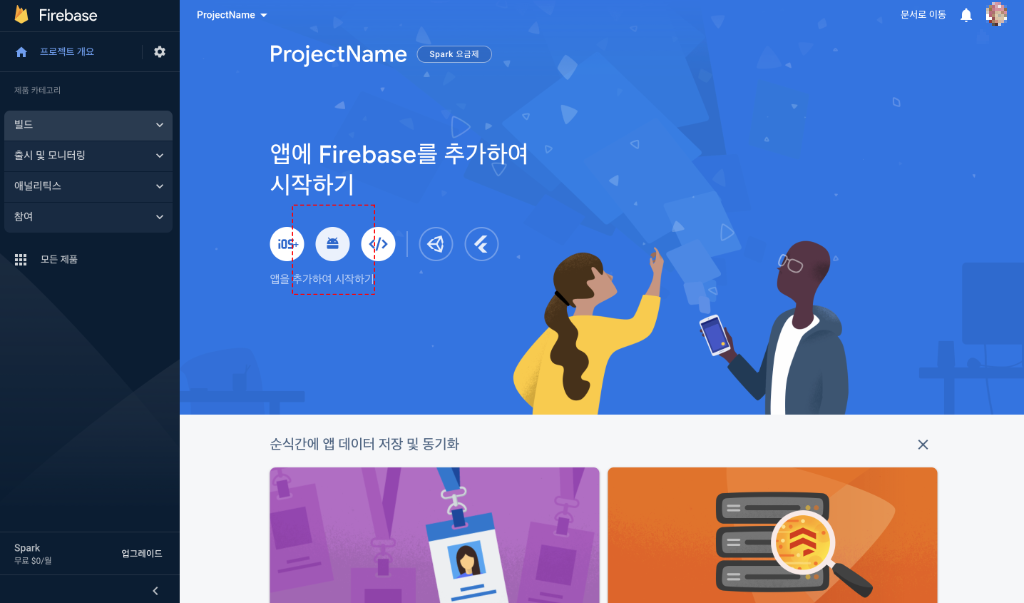 [Figure 3] Add Android App
 [Figure 4] Register App Information
 [Figure 5] Download Configuration File
Firebase Account Key Setup
- Navigate to the project settings Cloud Messaging service.
- Select Manage Service Accounts and navigate to the project service account service.
- Select the registered service account and navigate to the key management service.
- Use Add Key to select Create New Key and generate a JSON file.
- Download the generated JSON file.
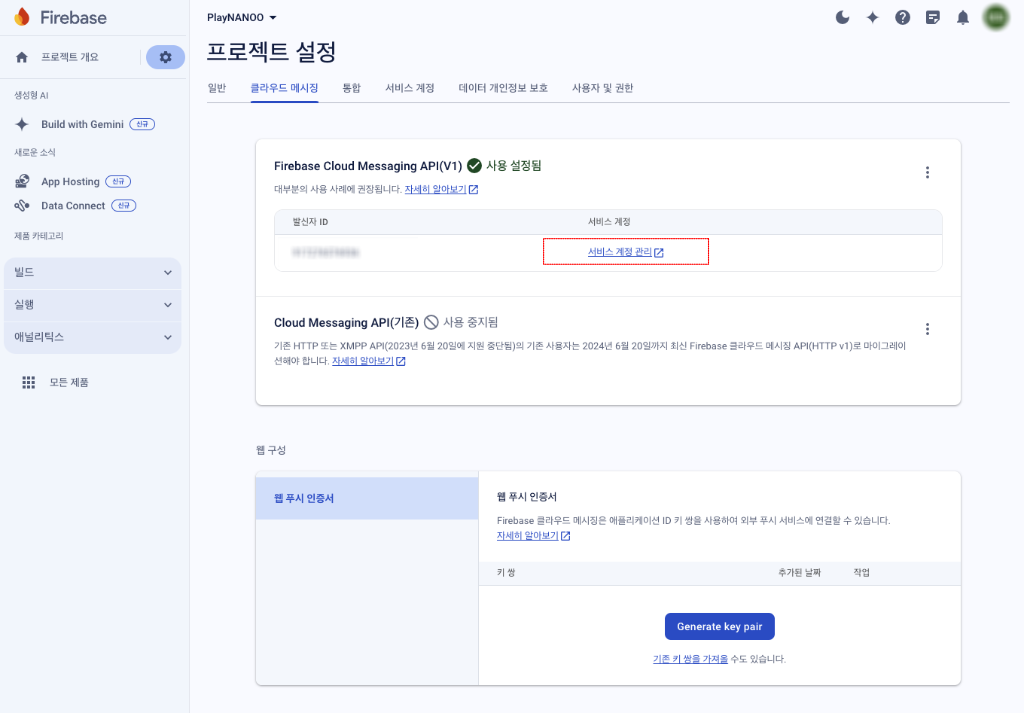 [Figure 6] Firebase Cloud Messaging Settings
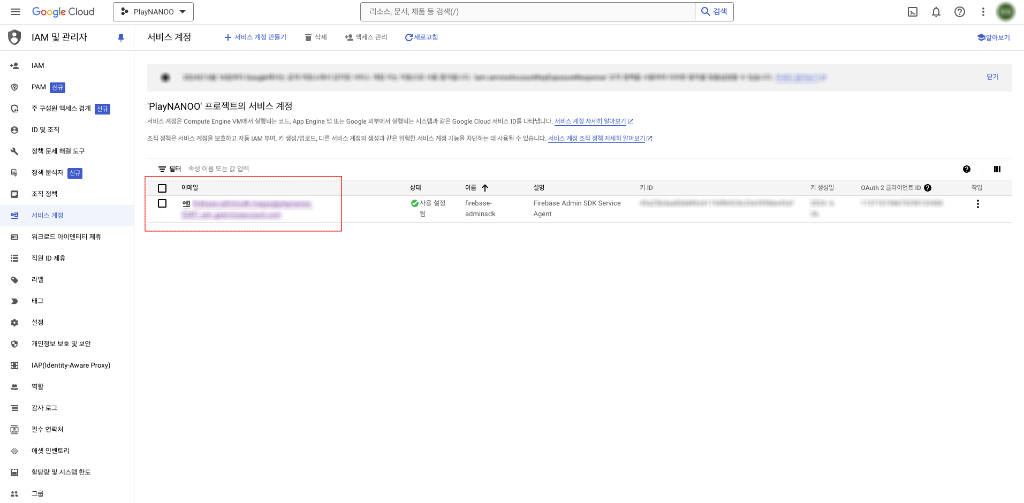 [Figure 7] Project Service Account Settings
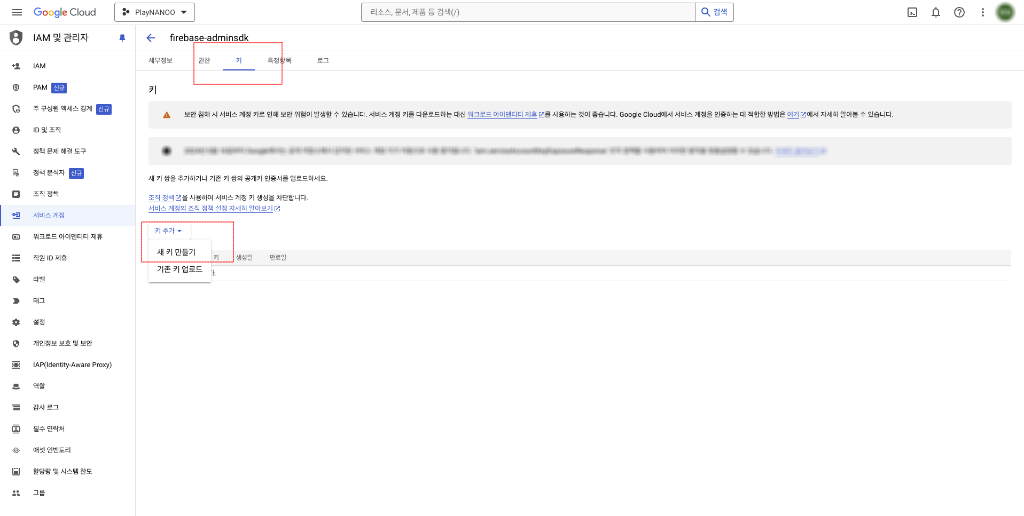 [Figure 8] Create Project Service Account Key
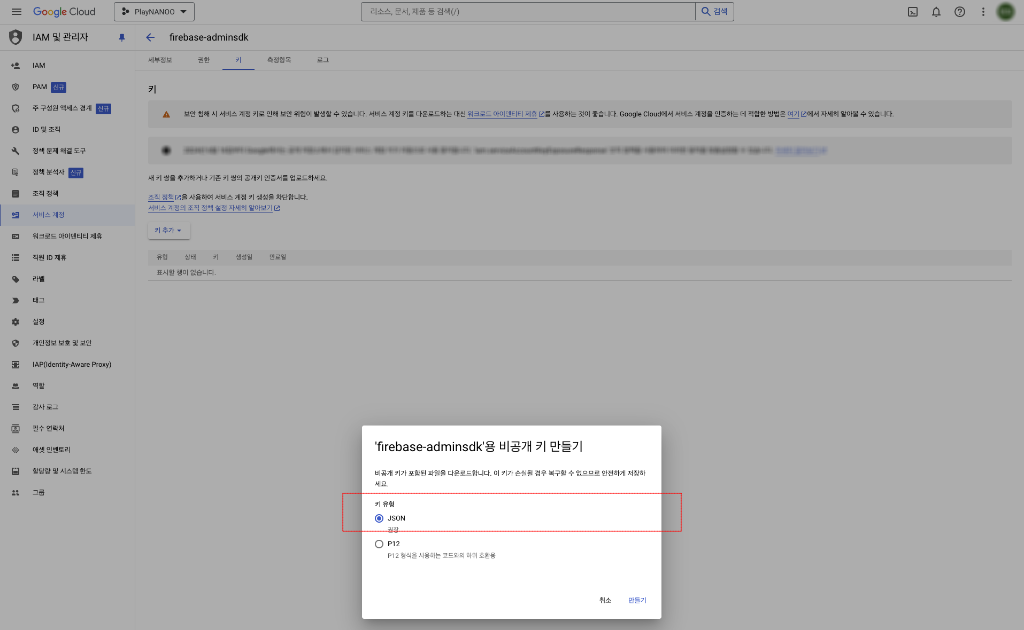 [Figure 9] Download Project Service Account Key JSON
Register Firebase Account Key
- Register the generated account key JSON file in the PlayNANOO settings under push notification management.
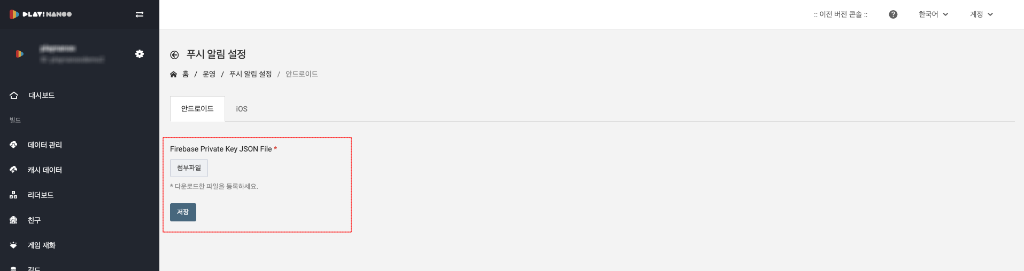 [Figure 10] Register Account Key in PlayNANOO Console
Download and Import Firebase Unity SDK
- Download the Unity SDK provided by Firebase and import the FirebaseMessaging.unitypackage into your project.