Android Configuration
Package Information and License Key Setup
Check the license information registered in the console for Android receipt validation.
1. Access Google Play Console and select your application

2. Select Monetize > Monetization setup menu and check license information

3. Register app package information and license information in Playnanoo Console

Service Account Setup
This configuration is required for Android receipt validation and to check detailed information of purchased products.
1. Access Google Cloud Platform
Access Google Cloud Platform
2. Create a new project
Click New Project.
 Enter the project name and click Create.

3. Configure Access Permission API
After project creation is complete, click the APIs & Services page.
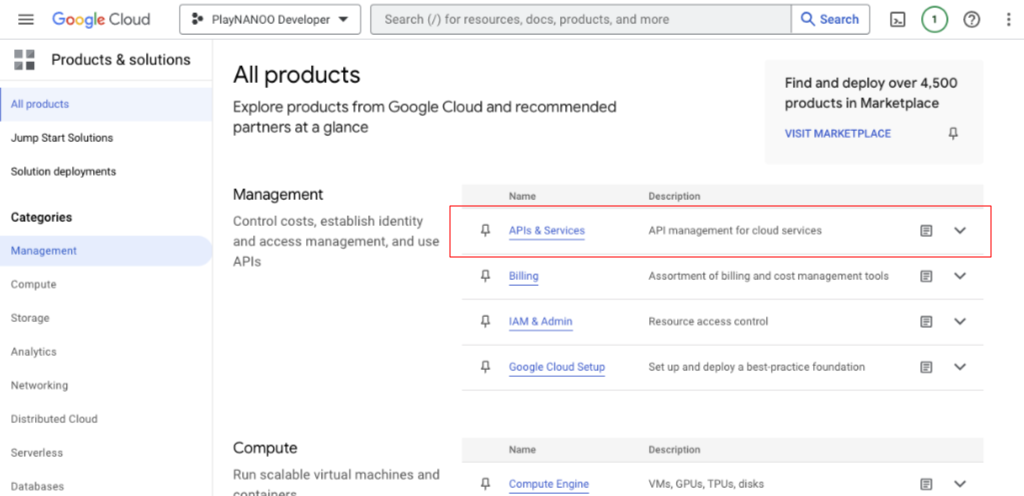 Enable the use of APIs and services.
 Search for and enable the following APIs in the API Library.
*  **Google Play Android Developer API**
*  **Google Play Game Services Publishing API**


4. Create service account
Go to the Credentials page and click Create Credentials > Create Service Account.
 Enter the service account name and description, then click Create and Continue.
 Select Owner as the role and click Continue.
 Enter the email address currently logged into the console for access permissions and complete account creation.

5. Generate JWT
Click on the created account.
 Go to the Keys menu in the top menu and click Add Key > Create new key.
Select JSON as the key type and click Create.
Go to the Keys menu in the top menu and click Add Key > Create new key.
Select JSON as the key type and click Create.

6. Register user in Google Play Console
In Google Play Console, select Users and Permissions, then click Invite new user.
 Enter the email address of the account created in step 4, then select the application that requires permissions in App permissions.
 In Permissions > Account permissions, select all financial data information and complete the user invitation.

7. Register JWT JSON file
Register the JWT JSON file downloaded in step 5 to Playnanoo.