Android Environment Setup
PlayNANOO supports the use of Apple ID in Android environments. Configure the environment to activate Apple ID.
Activate Sign In With Apple
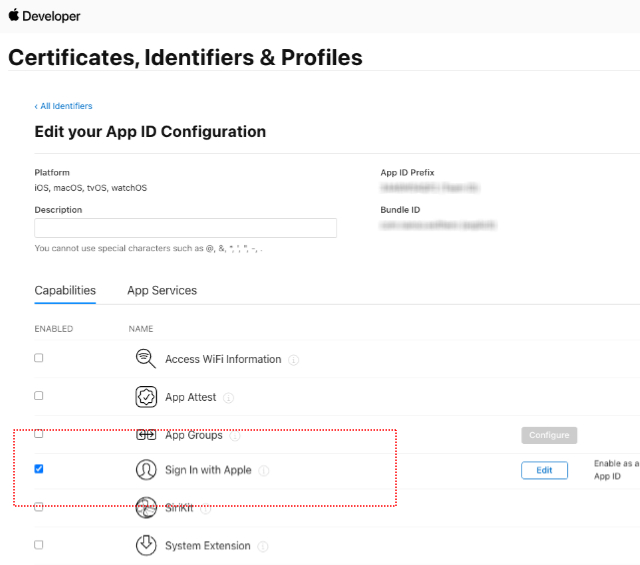
- Activate the Sign In with Apple service for the corresponding project in Certificates, Identifiers & Profiles > Identifiers on the Apple Developer page.
Add Service IDs
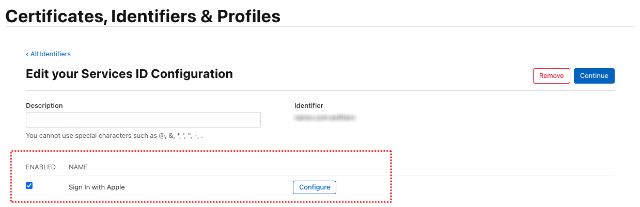
- Select Certificates, Identifiers & Profiles > Identifiers on the Apple Developer page, then add a Service ID.


- The Identifier of the Service IDs should be different from the Identifier of the App ID.

- Click Configure in Sign In with Apple.
- Select the project you want to use for Primary App ID.
- Enter playnanoo.com for Domains and Subdomains.
- Enter https://service-account.playnanoo.com/apple/callback for Return URLs.

Create and Download Key
- Select Certificates, Identifiers & Profiles > Keys on the Apple Developer page, then add a Key.

- Activate Sign in with Apple, then click Configure.

- Select the Primary App ID.

- Download the generated key information and store it safely.

PlayNANOO Console Settings
- Access the PlayNANOO console and go to Settings > API and Platform Management for the corresponding channel.
- Enter the following information in iOS settings:
- Bundle Identifier: Enter the Bundle ID of the project registered in Identifiers.
- App ID: Enter the Apple ID of the AppStore project.
- Team ID: Enter the Team ID (App ID Prefix) of the project registered in Identifiers.
- Service ID: Enter the Identifier information of the Service IDs registered in Identifiers.
- Key ID: Enter the Identifier information of the generated Key.
- Key File: Upload the key information file downloaded when generating the Key.