Sign in with Google Environment Setup (v1 Compatible)
- Google login web authentication method. Compatible with google v1 method.
- Configure the environment to use Google accounts.
Register Google User OAuth Client ID
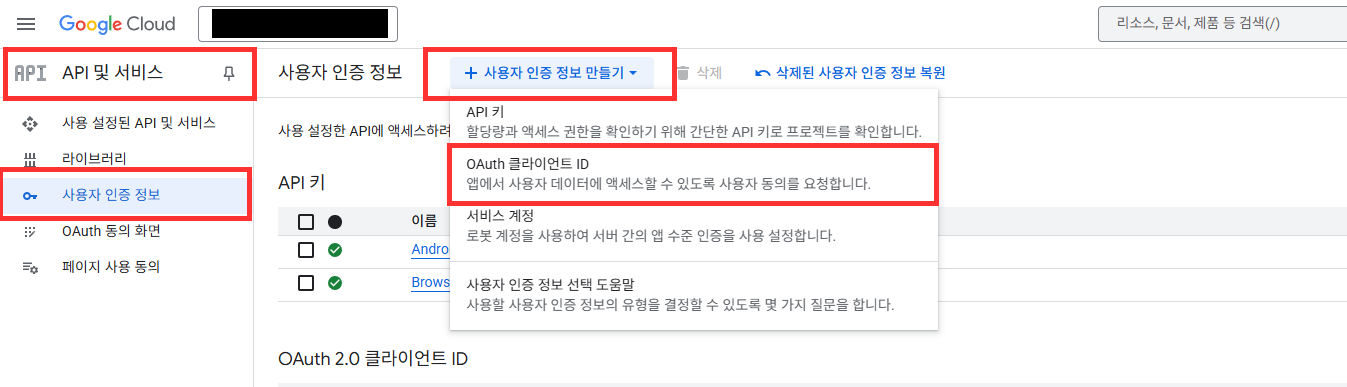
- Select Google Cloud Platform > Credentials > Create Credentials > OAuth Client ID.
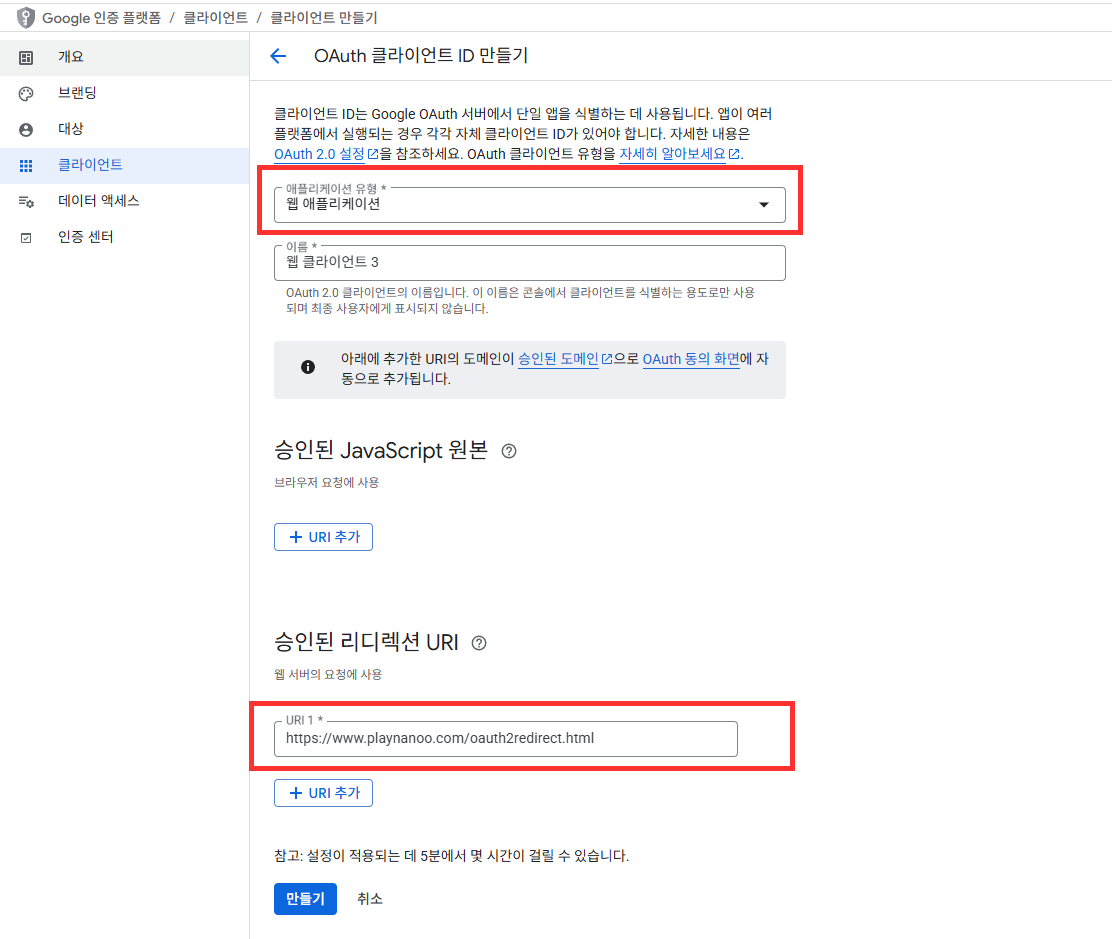
- Select Web application as the application type.
- Add the following 2 URLs to Authorized redirect URIs:
https://www.playnanoo.com/oauth2redirect.html(for backward compatibility)https://www.playnanoo.com/oauth2redirect.html?v=2(for new version)
- Check the client ID information of the added OAuth client ID.
Register Google User OAuth Client ID (iOS)
- Select Google Cloud Platform > Credentials > Create Credentials > OAuth Client ID.
- Select iOS as the application type, enter other information, and complete.
- Select the added OAuth client ID and download the PLIST information.
- Rename the downloaded PLIST file to GoogleService-Info.plist.

Unreal Engine Plugin Setup
- Use Google Play Services plugin for Unreal Engine or a third-party Google authentication plugin.
- For iOS, you can utilize Online Subsystem iOS.
- For Android, you can use the Google Play Games Services plugin.
xCode Setup (iOS)
- Run the xCode project as a CocoaPods project.
- Add the GoogleService-Info.plist downloaded from Google Cloud Platform to your project.

- Register the iOS URL scheme information from Google Cloud Platform in the URL Schemes of URLType.
- The URL Schemes information is the REVERSED_CLIENT_ID value from GameService-Info.plist.

Unreal Deep Link Registration Procedure Android
The existing shared scheme mygame has been deprecated.
If multiple apps using the same scheme are installed, the issue of returning to the wrong app after authentication completion occurs.
You must use the Game ID registered in the PlayNANOO Console as the scheme.
The Game ID can be found on the PlayNANOO Console > Game & App Settings page under the "Game & App ID" item.
- In Project Settings > Android > Advanced APK Packaging, add the following settings:
- Add the following XML to Extra Tags for Application Manifest:
- Set the
android:schemevalue to the Game ID registered in the PlayNANOO Console.
<intent-filter>
    <action android:name="android.intent.action.VIEW" />
    <category android:name="android.intent.category.DEFAULT" />
    <category android:name="android.intent.category.BROWSABLE" />
    <data android:scheme="{your_game_id}" />
</intent-filter>
If the Game ID registered in the PlayNANOO Console is yourgameid:
<intent-filter>
    <action android:name="android.intent.action.VIEW" />
    <category android:name="android.intent.category.DEFAULT" />
    <category android:name="android.intent.category.BROWSABLE" />
    <data android:scheme="yourgameid" />
</intent-filter>
Unreal Deep Link Registration Procedure iOS
- Add the following to Project Settings > iOS > Extra PList Data:
- Set the
CFBundleURLSchemesvalue to the Game ID registered in the PlayNANOO Console.
<key>CFBundleURLTypes</key>
<array>
  <dict>
    <key>CFBundleURLSchemes</key>
    <array>
      <string>{your_game_id}</string>
    </array>
    <key>CFBundleURLName</key>
    <string>com.mycompany.{your_game_id}</string>
  </dict>
</array>
If the Game ID registered in the PlayNANOO Console is yourgameid:
<key>CFBundleURLTypes</key>
<array>
  <dict>
    <key>CFBundleURLSchemes</key>
    <array>
      <string>yourgameid</string>
    </array>
    <key>CFBundleURLName</key>
    <string>com.mycompany.yourgameid</string>
  </dict>
</array>
Android Chrome Custom Tabs Setup (Optional)
To display a browser as an in-app overlay on Android, the Chrome Custom Tabs library is required. If the library is not present, it will automatically open in an external browser.
When Using UPL (Unreal Plugin Language)
- Add the following to your project's
YourProject_UPL.xmlfile:
<buildGradleAdditions>
  <insert>
    dependencies {
      implementation 'androidx.browser:browser:1.5.0'
    }
  </insert>
</buildGradleAdditions>
When Directly Modifying Build.gradle
- Add the following dependency to the
[Project]/Build/Android/gradle/build.gradlefile.
dependencies {
    implementation 'androidx.browser:browser:1.5.0'
}
ProGuard Setup
- Add the following rules to your project's ProGuard configuration file.
- This prevents ProGuard/R8 from removing Chrome Custom Tabs classes.
-keep class androidx.browser.customtabs.** { *; }
If the Chrome Custom Tabs library is not included, the SDK will automatically fall back to an external Chrome browser. Even when using an external browser, functionality works normally, and the app returns via deep link.
Deprecated: Legacy mygame Scheme Method
The following method should no longer be used.
All apps share the same mygame:// scheme, so if two or more apps using the PlayNANOO SDK are installed on the same device, the issue of returning to the wrong app after authentication completion occurs.
In the new method, the Game ID registered in the PlayNANOO Console is used as the scheme, enabling unique identification per app.
Legacy Method (For Reference)
Android (Legacy)
<intent-filter>
    <action android:name="android.intent.action.VIEW" />
    <category android:name="android.intent.category.DEFAULT" />
    <category android:name="android.intent.category.BROWSABLE" />
    <data android:scheme="mygame" android:host="oauth2redirect" />
</intent-filter>
iOS (Legacy)
<key>CFBundleURLTypes</key>
<array>
  <dict>
    <key>CFBundleURLSchemes</key>
    <array>
      <string>mygame</string>
    </array>
    <key>CFBundleURLName</key>
    <string>com.mycompany.mygame</string>
  </dict>
</array>