Item History
The inbox manages data separated by tables. For example, by creating tables for different purposes such as event rewards, customer compensation, and periodic distributions, you can independently manage item delivery history for each purpose. It provides features for creating inbox tables, sending items to specific players, and bulk delivery via CSV.
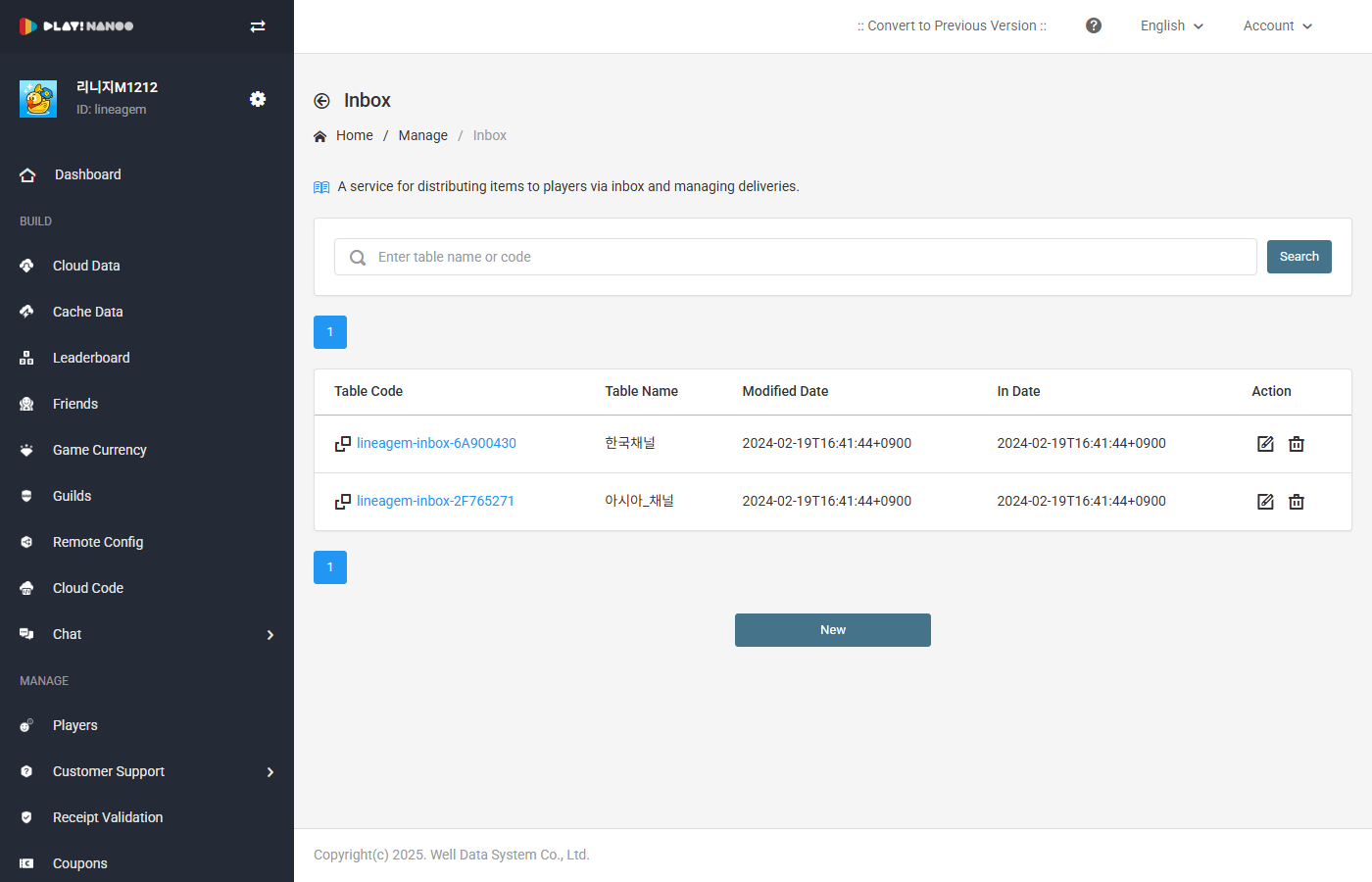
Table Management
Inbox tables are units for classifying and managing inbox items. You can view and manage registered tables from the table list.
Table List
The table list consists of the following fields.
| Field | Description |
|---|---|
| Table Code | Displays the unique code of the table. Provides clipboard copy functionality. |
| Table Name | Displays the name of the table. |
| Modified Date | Displays the date the table was last modified. |
| Registration Date | Displays the date the table was registered. |
| Actions | Provides table edit and delete functions. |
You can search by table name using the search area at the top.
Create Table
You can create a new table by clicking the Register button.
| Field | Description |
|---|---|
| Table Name | Enter the name of the table to create. (Required) |
Edit Table
Clicking the edit button in the table list allows you to change the table name.
Delete Table
Clicking the delete button in the table list allows you to delete the table.
Creating, editing, and deleting tables requires write or administrator permissions.
Inbox Delivery
Clicking a table code in the table list navigates to the item history screen for that table. In the item history, you can view delivered inbox items and send new items.
Item History
The item history table consists of the following fields.
| Field | Description |
|---|---|
| Status | Displays the usage status of the item. (Used, Not Used, Expired) |
| Item Code | Displays the unique code of the item. Provides clipboard copy functionality. |
| Player ID | Displays the ID of the player who received the item. |
| Item | Displays the item code and quantity. |
| Message | Displays the message delivered with the item. |
| Usage Date | Displays the date the player claimed the item. |
| Expiration Date | Displays the claim expiration date of the item. |
| Registration Date | Displays the date the item was sent. |
| Actions | Provides item delete functionality. |
You can search by player ID using the search area at the top.
Send Item
Clicking the Register button allows you to send inbox items to specific players. The send screen consists of the Basic tab and the Upload tab.
When sending items from the Basic tab, enter the following fields.
| Field | Description |
|---|---|
| Player | Enter the player IDs to receive the item. Separate with commas (,), up to 100 players. (Required) |
| Item Code | Select the item to send. (Required) |
| Item Quantity | Enter the quantity of the item to send. (Required) |
| Message Language | Set the language of the message. The default language is automatically selected. |
| Message Title | Enter the message title to be displayed in the inbox. (Required) |
| Message Content | Enter the message content to be displayed in the inbox. |
| Item Retention Period | Set the period during which the item can be claimed. (No period ~ 365 days) |
You can send multiple items simultaneously using the Add Item button. You can compose messages in various languages using the Add Message button.
CSV Upload
You can send inbox items in bulk using a CSV file from the Upload tab on the item send screen.
CSV Format
A CSV file in the specified format must be used. You can download the format file by clicking the Download CSV Format link.
The CSV file fields are as follows.
| Field | Description |
|---|---|
| Table Code | Enter the table code for item delivery. |
| Player ID | Enter the player ID to receive the item. |
| Item Code | Enter the item code to send. |
| Item Quantity | Enter the item quantity to send. |
| Message | Enter the message to be displayed in the inbox. |
CSV upload can register up to 1,000 data entries.