Reservation Management
Inbox reservation management provides the ability to view and manage the list of registered scheduled deliveries.
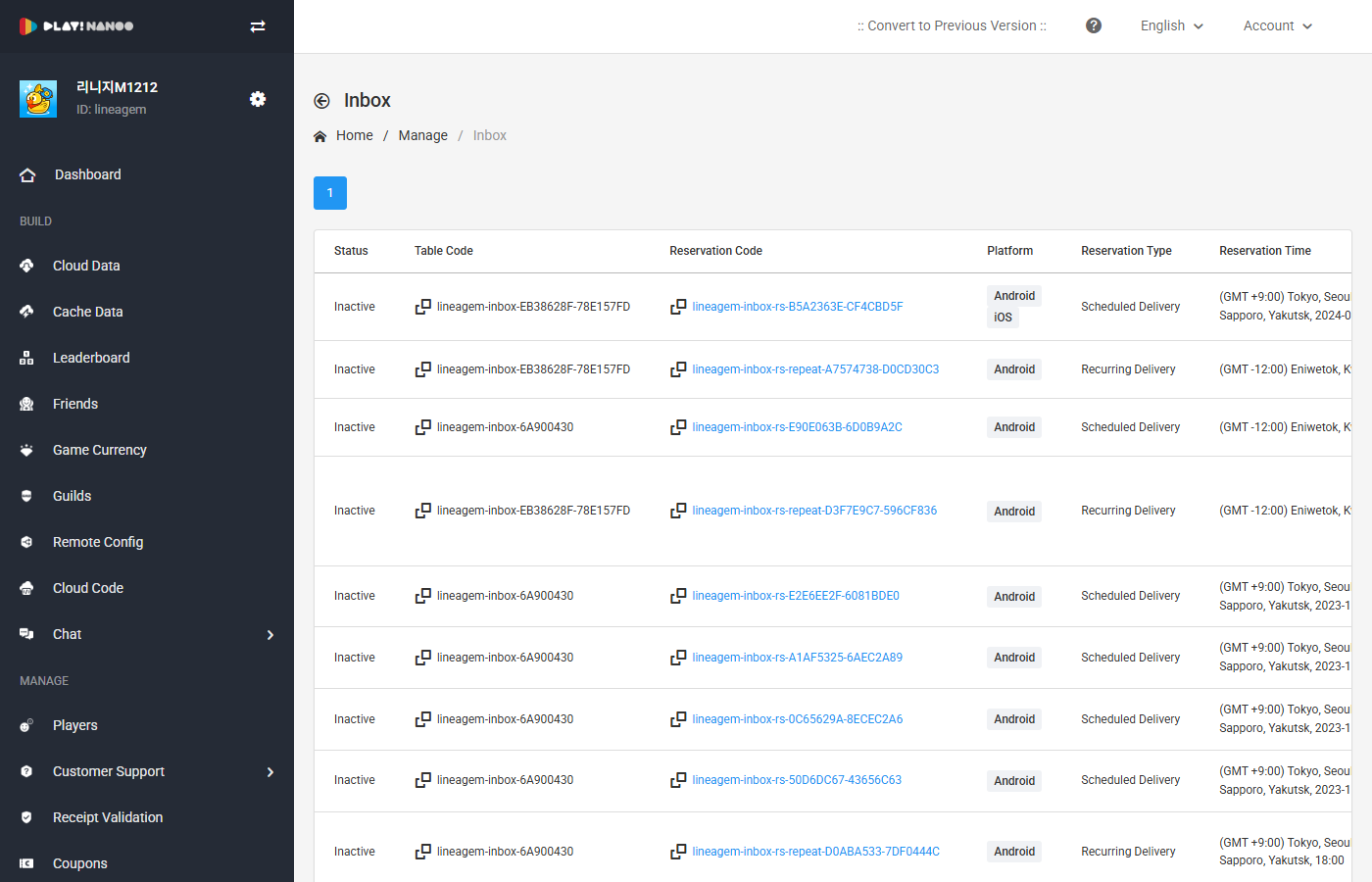
Reservation List
The reservation list table consists of the following fields.
| Field | Description |
|---|---|
| Status | Displays the active status of the reservation. Shown as active if the scheduled time has not yet arrived, or inactive if it has passed. |
| Table Code | Displays the table code used for the reservation. Provides clipboard copy functionality. |
| Reservation Code | Displays the unique code of the reservation. Clicking it navigates to the edit screen. Provides clipboard copy functionality. |
| Platform | Displays the target platform for delivery. (Android, iOS) |
| Reservation Type | Displays the type of scheduled delivery. (Scheduled Send, Recurring Send) |
| Reservation Time | Displays the scheduled delivery time. Timezone information is also shown. |
| Item | Displays the item code and quantity to be delivered. |
| Message | Displays the message title to be delivered. |
| Operator | Displays the operator who registered the reservation. |
| Registration Date | Displays the date the reservation was registered. |
| Actions | Provides edit, copy, and delete functions. |
Edit Reservation
Click the reservation code or the edit button in the actions column to navigate to the reservation edit screen. All reservation settings can be modified in the edit screen.
Copy Reservation
Click the copy button in the actions column to create a new reservation with the same settings copied from the selected reservation.
Delete Reservation
Click the delete button in the actions column to delete the reservation.
info
Editing, copying, and deleting reservations requires write or administrator permissions.